Veeam Data Cloud 2/2

Create backup Policy
Veeam Data Cloud is now correctly configured. We can now see for create backup job. This post concern backup for M365, we will see for other tenant on the future post. From the Veeam Data Cloud console, click on Microsoft365.
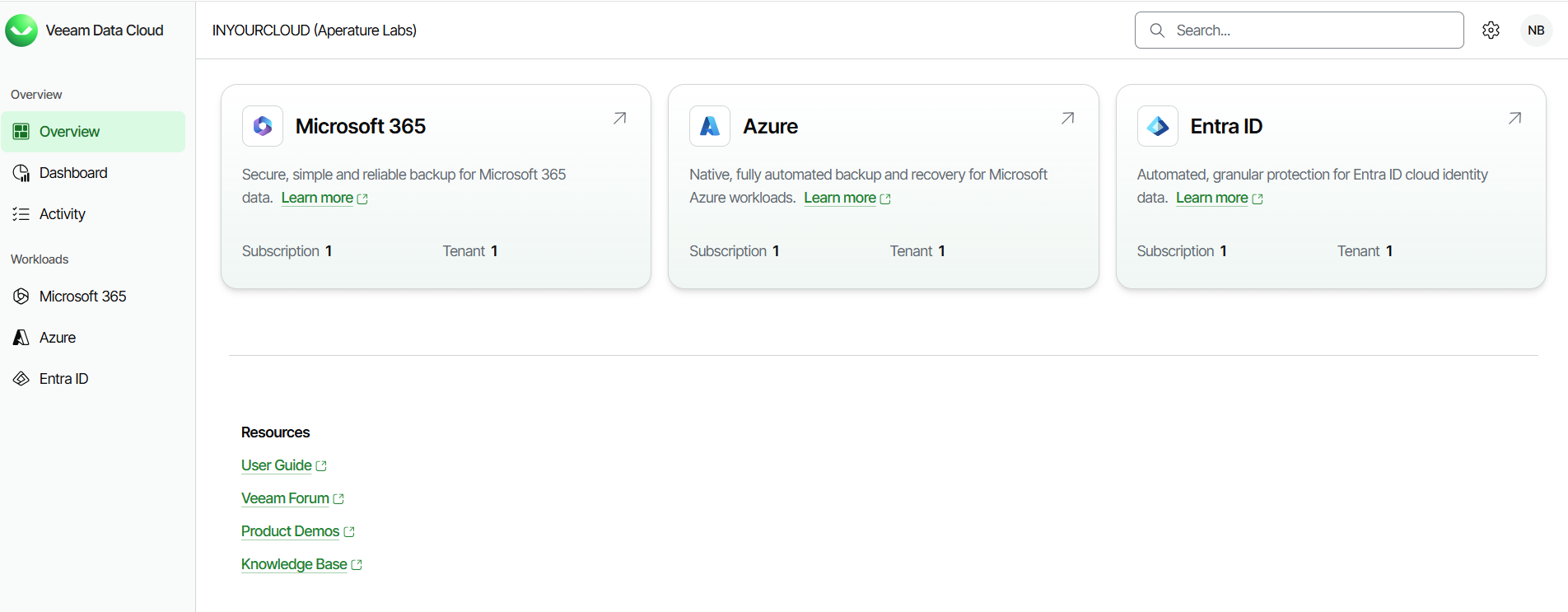
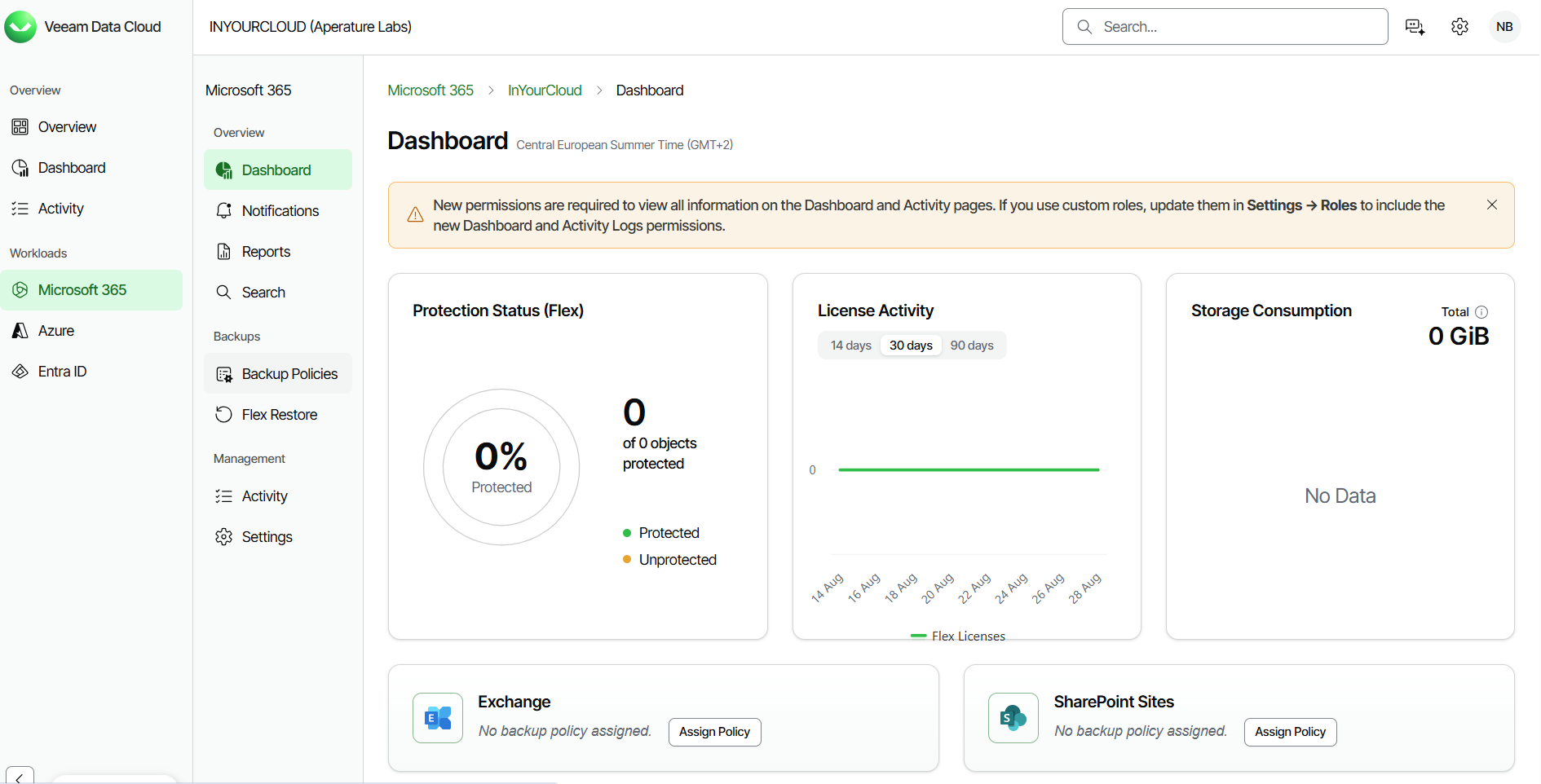
All tenant managed by the Veeam Data Cloud platform appear. Select the desired tenant. A dashboard appear and we can see a lot of interesting information (like protection status, licence activity, storage Consumption and policy for the different M365 workload.
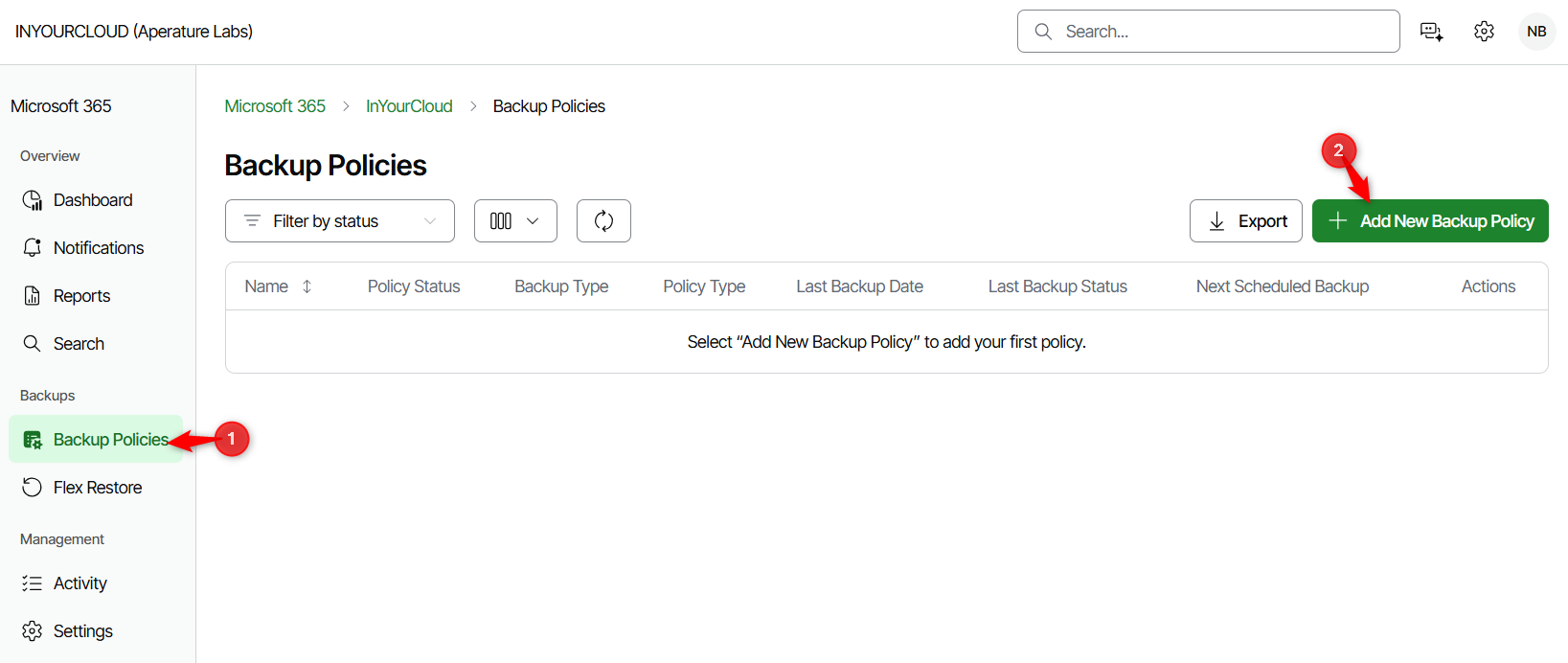
We can now create a Backup Policies. On the menu, click on Backup Policies then on Add New Backup Policy.
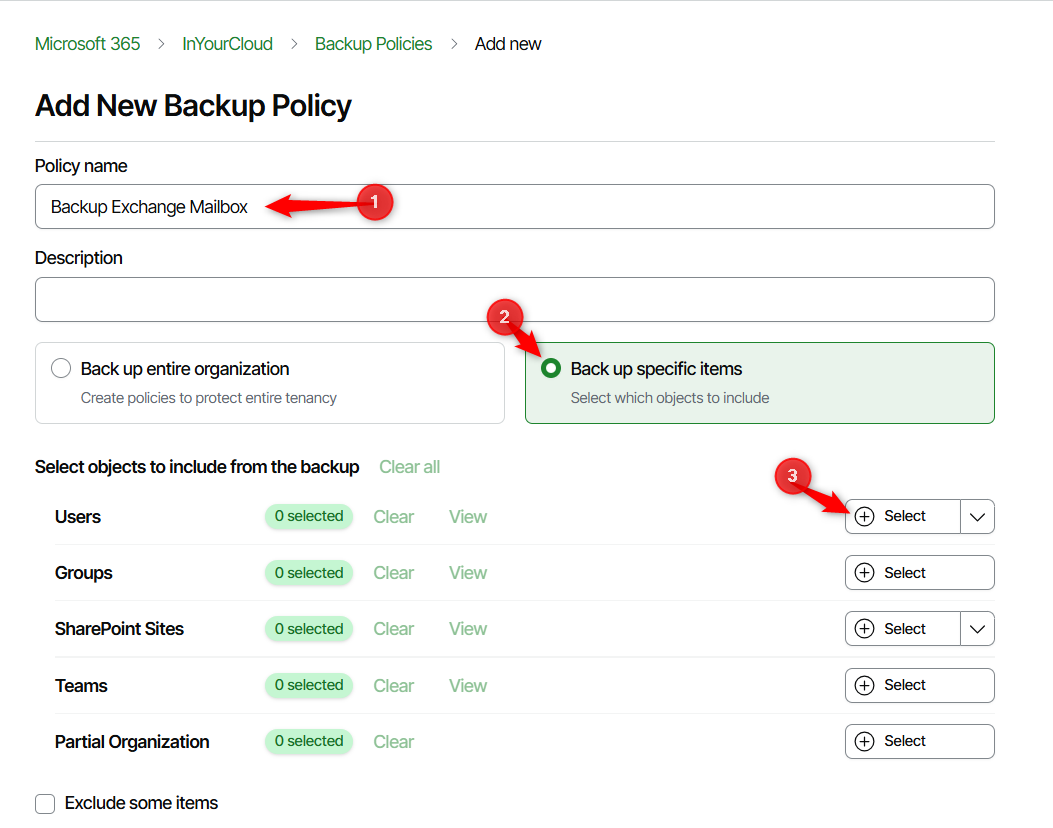
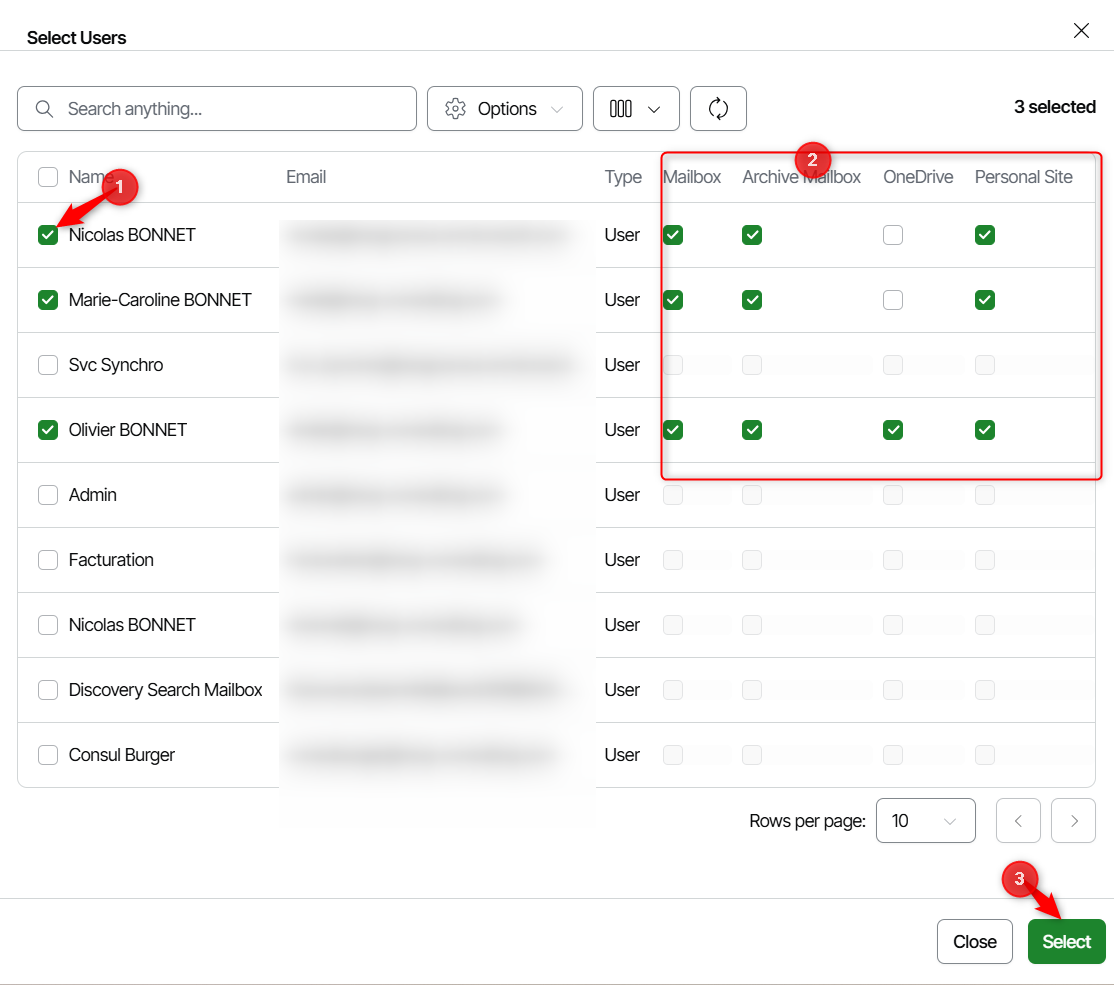
Enter the name of the policy, we can also enter description. Two options is possible. Backup Entire organization options must be used for backup all the users on the tenant. The options Backup specific items must be used for add only few object. Click on Select the option Backup specific items and click on Select to select desired users.
Check users that it’s must be added on the backup policy. The items must be selected, by default Mailbox, Archive Mailbox, One Drive and Personal site. Uncheck the undesired items and click on Select button.
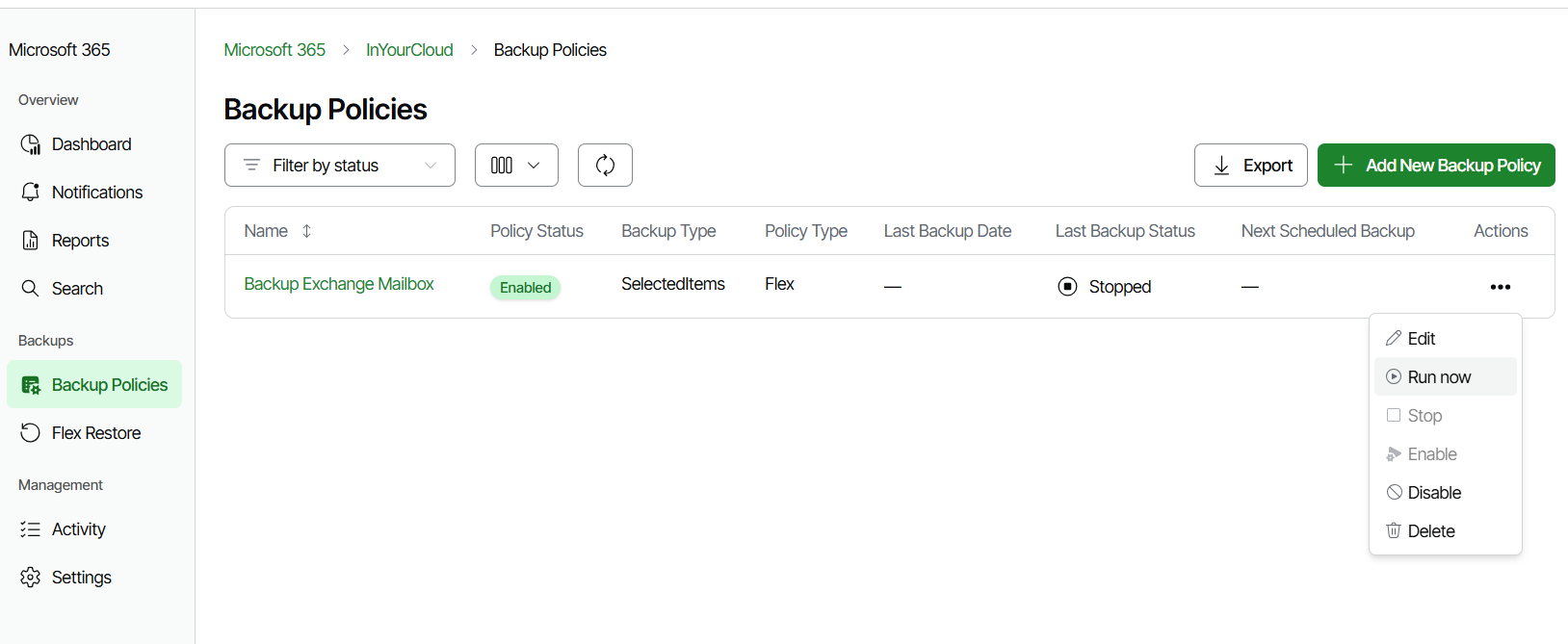
Click on Add Policy, the policy is now created. By default the backup run every 24 hours but we can run a backup manually.
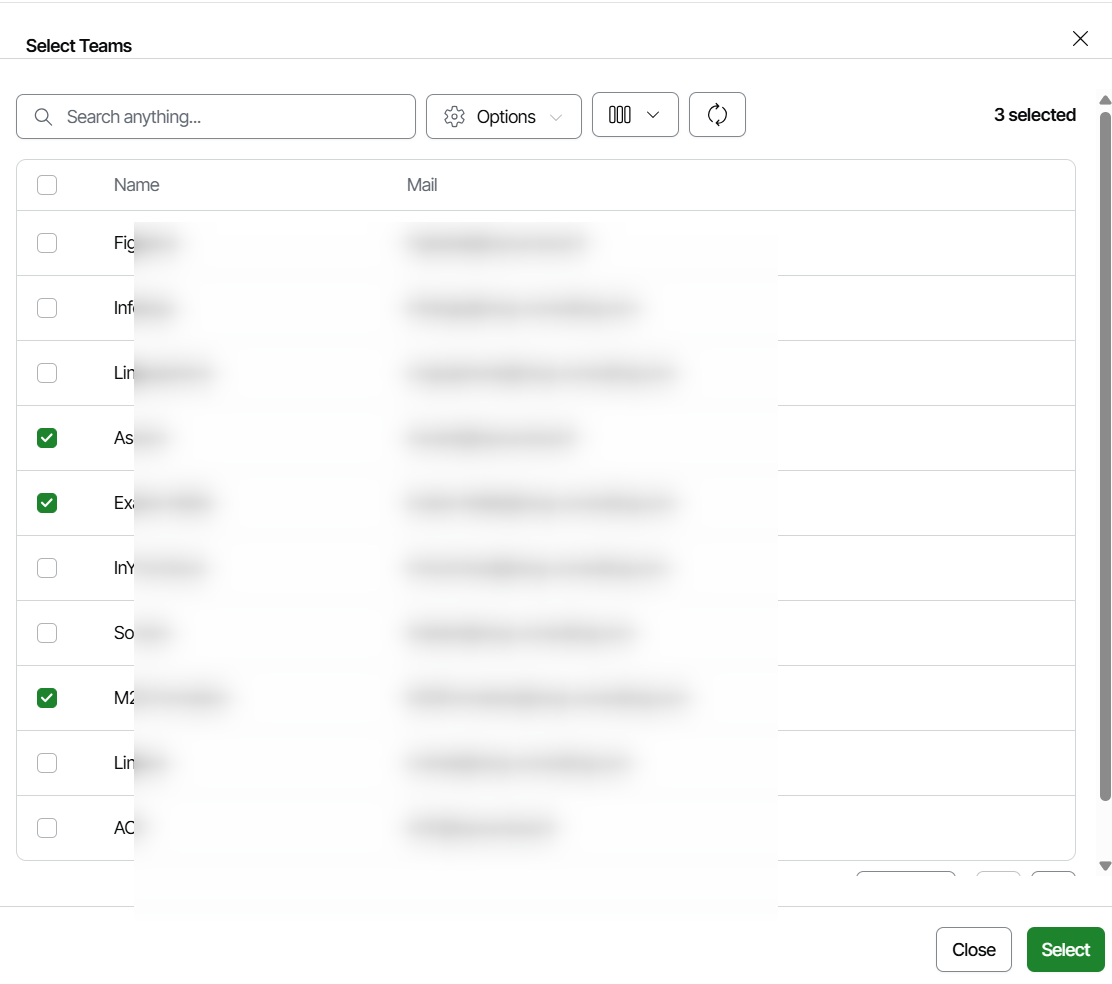
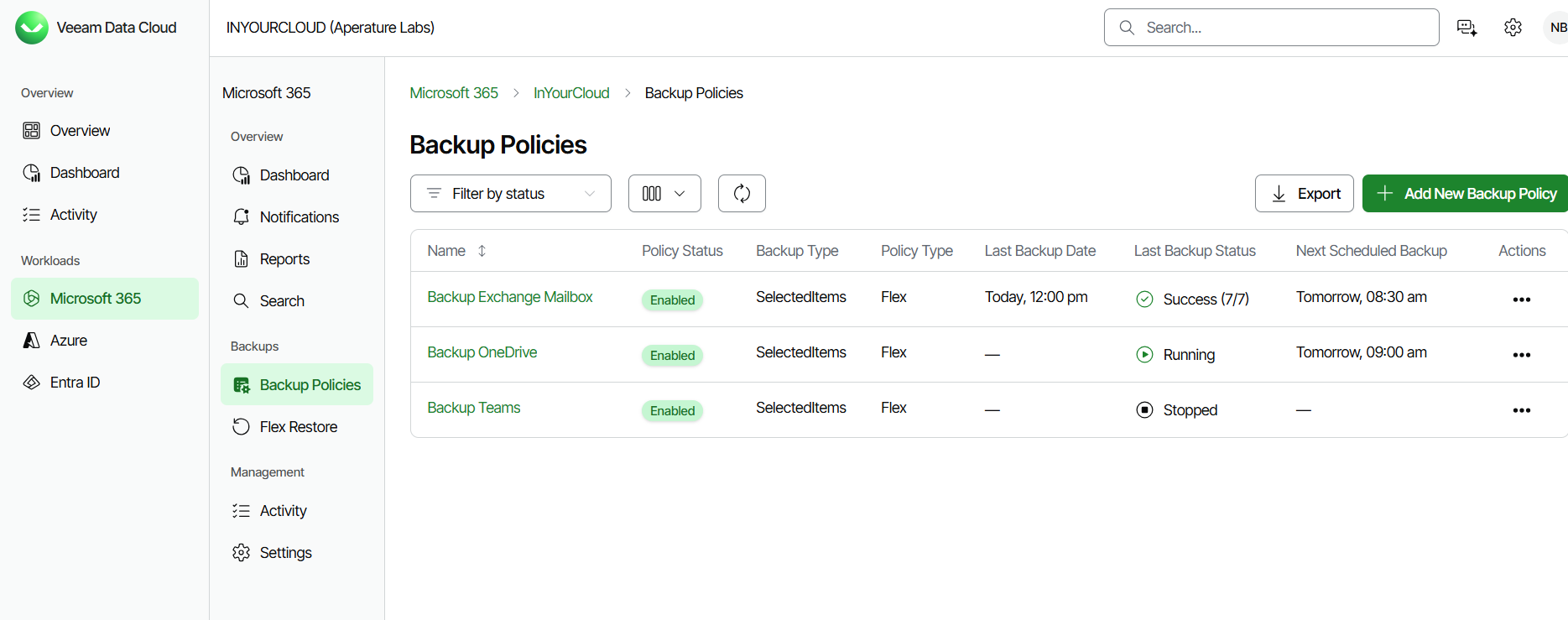
Few policy are created for backup the different items (Exchange/OneDrive/Teams) You can also create one rules for Exchange and OneDrive or one for all. For the tenant with a lot of object, i prefer have few policies. For Teams we can backup the teams. Same as Exchange we can choose to backup all teams or only few teams. We can retrieve on the Veeam Data Cloud Platform all backup policy. For each it’s automaticcaly running every 24 hours or manually.
Full restoration of the M365 Object
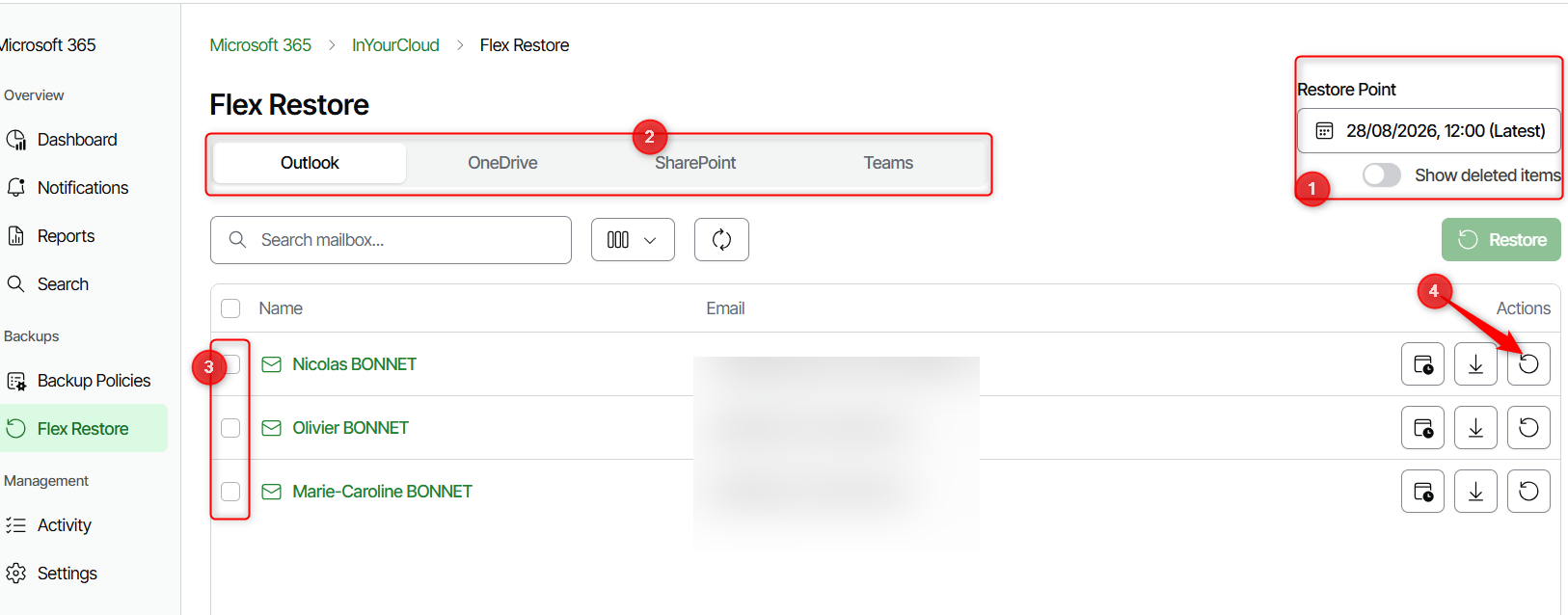
After the backup is very interesting to restore (and to test the restoration) M365 objects. From the Veeam Data Cloud console, click on Flex Restore. Select the restoration point then the desired item. Select the object and click on Restore. It’s also possible to download on PST (for exchange) the content of the mailbox backuped or to view all restore point for the selected object.
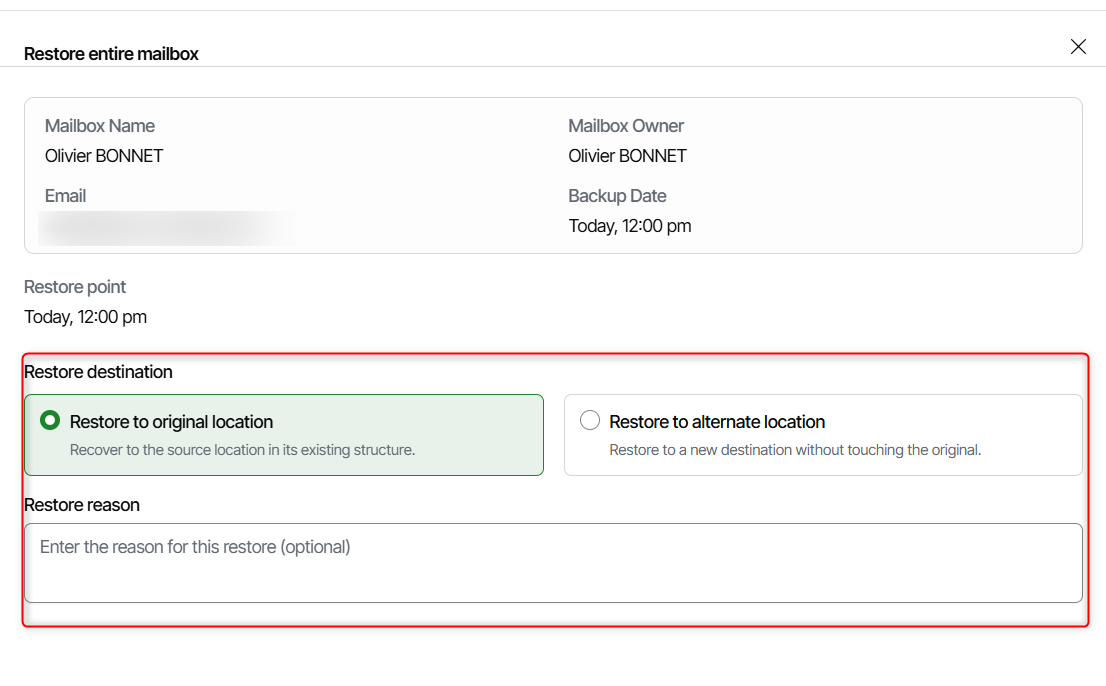
We can choose to restore to the original location or an alternate location. It can be important to indicate the restoration reason to follow all restoration operations.
We can start the restoration. It’s possible to perform the same restoration for OneDrive or Teams
Custom restoration
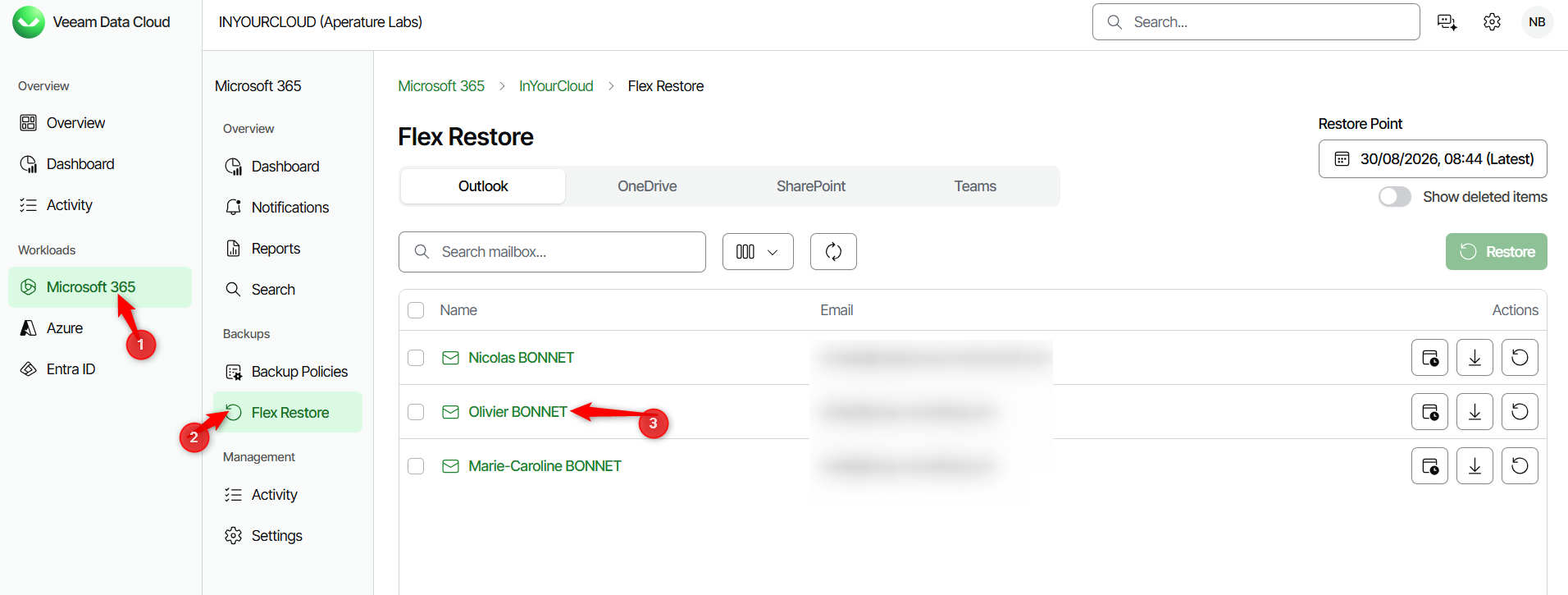
He can also possible to restore one mail, one contact, one file without a full restoration of the mailbox, onedrive or teams channel.From the Veeam Data Cloud console, click on Flex Restore. Select the desired users.
Select the desired folder. It’s possible to restore the entire folder or to click to select the desired item. The same procedure must be proceed for teams and onedrive.